CapCut Video Editor for Android: Features, Editing Tools & Download Guide
Just Now
307.5 MB
19.9.0
Android 6.0
2000k+
Description
Creating attractive videos on a smartphone has become easier with mobile video editing apps. Whether you want to make short videos for social media, edit travel clips, create tutorials, or combine photos with music, a good editing tool can save time and help you produce better results. CapCut Video Editor for Android is a popular option for users who want to edit videos without needing a computer or professional editing experience.
The app offers a range of editing tools, including trimming, transitions, text, effects, filters, audio options, and other creative features. Beginners can start with simple edits, while more experienced users can explore additional controls to improve their videos.
However, features, availability, and pricing can change between versions and regions. This guide explains how the app works, what you can do with it, how to start editing, and what to consider before installing it on your phone.
What Is CapCut Video Editor for Android?
CapCut Video Editor for Android is a video editing application developed by Byte Dance. It is designed to help users create and edit videos on supported mobile devices. The app is commonly associated with short-form video creation, but it can also be used for personal projects, educational content, product clips, and other video formats.
With CapCut Video Editor for Android, users can arrange video clips, cut unwanted sections, add music, place text on the screen, and apply visual effects. Depending on the current version and region, the app may also offer automatic captions, background removal, templates, AI-powered tools, and other advanced features.
The main advantage is that you can complete many editing tasks directly on your phone. You do not necessarily need a computer or advanced editing knowledge to create a simple video.

CapCut Video Editor for Android App Overview
The following table provides general information about the application. Version numbers, file sizes, and Android requirements should be checked against the current official listing because they can change.
| App information | Details |
|---|---|
| App name | CapCut |
| Developer | Bytedance Pte. Ltd. or the publisher shown in the official listing |
| Category | Video Players & Editors |
| Platform | Android |
| Main purpose | Video editing and content creation |
| Price | Free to download, with some features potentially paid |
| Internet connection | Required for downloads and many online features |
| Intended users | Beginners, creators, students, and everyday users |
| Official website | https://www.capcut.com/ |
Important: There is no single version number or file size that applies to every Android device at all times. Check the official app store listing for the current release and compatibility details.
Main Features of CapCut Video Editor for Android
The app provides a collection of tools for improving videos and preparing them for different platforms. The exact selection may vary depending on your device, region, account, and installed version.
1. Trim, Split, and Arrange Video Clips
Basic editing is the foundation of almost every video project. You may record several clips but only need a few seconds from each one. Cutting unnecessary parts can make the final video clearer and more enjoyable to watch.
CapCut Video Editor for Android allows users to perform common editing tasks, such as trimming clips, splitting footage, and arranging segments on a timeline.
For example, if you record a trip, you can remove long pauses, combine your best moments, and place the clips in a logical order. This makes the video easier to follow without changing the original footage.
2. Add Music and Sound Effects
Audio can change the mood of a video. Background music may make a travel montage feel more energetic, while quiet music can suit a tutorial or personal slideshow.
Depending on the available tools, you can add audio, adjust its position, and balance it with the sound recorded by your phone. Sound effects can also help emphasize transitions or actions.
When editing, make sure the music does not overpower speech. If you plan to publish your video publicly, use audio you have permission to use. Music available inside an app may still have restrictions depending on the platform, region, and type of account.
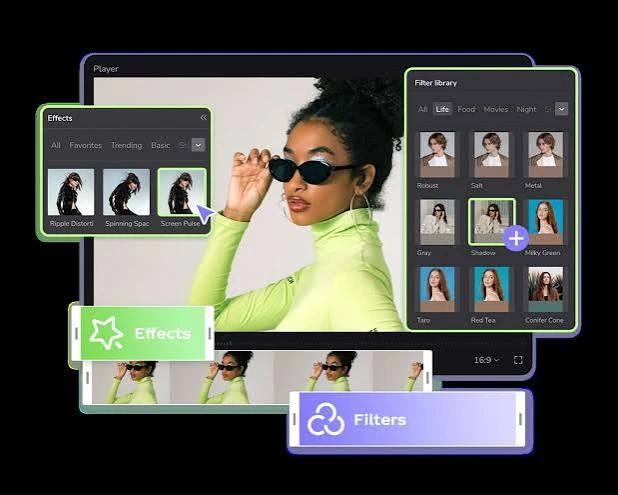
3. Use Filters and Visual Effects
Filters can change the appearance of footage by adjusting its overall colour and mood. For example, a warmer look may suit sunset scenes, while a cooler tone can create a different atmosphere.
The app may also provide effects that change how a clip looks or moves. These can make videos more expressive, especially when used carefully.
A useful tip is to choose one consistent visual style for the whole project. Applying too many unrelated effects can make the video look confusing instead of professional.
4. Create Smooth Transitions
Transitions help connect one clip to another. A simple cut works well for many videos, but a transition can be useful when moving between scenes or showing a change in time.
With CapCut Video Editor for Android, users can explore available transition effects and adjust how clips connect. Some transitions are more suitable for fast social videos, while others work better for slower presentations.
Keep transitions short and purposeful. If every clip uses a different dramatic effect, viewers may focus more on the editing than on the content itself.
5. Add Text, Titles, and Captions
Text can explain what is happening in a video, introduce a topic, display a name, or highlight important information. It is particularly useful for tutorials, product demonstrations, and short educational clips.
You can use text tools to create titles and labels, while caption features may help display spoken words when supported.
For better readability, use a clear font, suitable text size, and strong contrast against the background. Keep important text away from the edges, where platform interfaces or cropping may cover it.
If the app generates captions automatically, review them before publishing. Names, technical terms, accents, and background noise can cause transcription mistakes.
6. Explore Templates
Templates can help users create a video without manually building every part of the timeline. Depending on availability, a template may include a particular arrangement of clips, transitions, effects, or music.
This can be helpful for beginners who want a quick result or creators who need inspiration for a social media post.
However, templates may not be available in every country or version. Some may require an internet connection, an account, particular media, or access to specific features.
Before using a template, check whether it suits your footage and whether its included audio or visual assets are appropriate for your intended use.
7. Use AI-Powered Editing Tools
Some versions of CapCut Video Editor for Android offer AI-assisted features that can reduce the amount of manual work involved in editing. Depending on availability, these tools may include automatic captions, background removal, video enhancement, or other automated editing options.
These features can be useful when you want to prepare content quickly. For instance, automatic captions can provide a starting point for a video with spoken instructions.
Still, AI tools are not perfect. They may misunderstand speech, remove parts of a subject, or produce results that need correction. Always preview the finished result rather than assuming that an automated tool has completed every task correctly.
8. Adjust Video Speed
Changing video speed can make a clip more dramatic or easier to understand. A faster clip can show a long process in less time, while slow motion can emphasize a particular movement.
The available speed controls depend on the version and editing mode. Try small adjustments first, then preview the result to make sure the movement looks natural.
Speed changes can also affect audio. If the original sound becomes distracting or distorted, consider adjusting the audio separately or replacing it with suitable background music.
9. Work with Different Video Formats
People create videos for many purposes, from vertical social media posts to landscape tutorials. Choosing the correct frame shape helps your video fit its intended platform.
CapCut Video Editor for Android may provide aspect-ratio or canvas options that help you prepare content for different destinations. Common formats include vertical, square, and landscape layouts, although the exact options can vary.
Before exporting, check the framing of every clip. A subject near the edge may be cropped when changing from landscape to vertical video. Repositioning the footage can help keep faces, text, and important objects visible.
10. Export and Share Your Finished Video
After editing, you need to export the project as a finished video. Export settings may allow you to choose a resolution and other quality options, depending on the version and device.
Higher resolutions can preserve more detail, but they also produce larger files and may require more storage and processing time. A very high frame rate or resolution is not always necessary for a simple social media clip.
Preview the video before sharing it. Check for unwanted blank sections, incorrect captions, audio problems, and transitions that do not look right.

How to Edit a Video Using CapCut
If you are new to editing, start with a short project. The following steps provide a general workflow; individual menus may differ between versions.
Install and Open the App
Download the app from a trusted source, preferably its official Google Play listing if available for your device and region. Open it after installation and review any setup instructions.
Start a New Project
Choose the option to create a new project. Select the videos or photos you want to use and add them to the editing timeline.
It is easier to work with a few well-chosen clips than with dozens of unrelated files. Organize your footage before starting.
Remove Unwanted Sections
Tap a clip and look for the available trimming or splitting controls. Remove pauses, mistakes, or sections that do not contribute to the story.
When using CapCut Video Editor for Android, try to keep each clip long enough for viewers to understand what is happening. Cutting too aggressively can make a video feel rushed.
Arrange Your Clips
Move clips into the order that best explains your topic. For a travel video, you might start with the location, show the main activities, and finish with a memorable scene.
Watch the sequence from beginning to end to make sure it feels natural.
Add Text and Audio
Add a title if the video needs context. You can then include captions, labels, background music, or sound effects where appropriate.
Keep text short and easy to read. Adjust the audio so that dialogue remains clear and the music does not become too loud.
Improve the Visual Style
Apply a suitable filter or make other adjustments if needed. Add transitions only where they improve the flow.
A clean, consistent edit often looks better than a video filled with effects.
Preview and Export
Watch the entire project before exporting. Check the beginning and ending carefully, as these are common places for accidental blank frames or abrupt cuts.
Select an appropriate export setting based on your intended use and available storage. Once the export is complete, play the saved video to confirm that it works as expected.
Tips for Better Video Editing on Android
A good result depends on more than the number of tools in an editor. These practical habits can improve your videos.
- Plan before editing: Decide what the video should communicate.
- Use clear footage: Good lighting and steady recording reduce the need for corrections.
- Keep the story simple: Remove clips that do not add useful information.
- Balance the audio: Make sure speech can be heard clearly.
- Choose readable text: Avoid tiny fonts and complicated backgrounds.
- Stay consistent: Use similar colours, fonts, and transitions throughout a project.
- Check the frame shape: Make sure the important parts of the video remain visible.
- Save storage space: Delete unnecessary duplicate files only after confirming that your final project is safe.
- Review before publishing: Watch the exported file, not just the editing preview.
For creators who are learning, the best approach is to master trimming, audio, text, and export settings before moving on to more advanced effects.
Benefits of CapCut Video Editor for Android
There are several reasons users may consider this editing app for everyday projects.
Mobile editing: You can work on supported projects directly from your phone.
Tools in one place: Basic cutting, text, audio, effects, and other editing options can be accessed within one application.
Beginner-friendly workflow: New users can start with simple edits and gradually learn more advanced controls.
Creative flexibility: Effects, transitions, and text can help users develop their own style.
Useful for short videos: The app can suit social content, personal clips, demonstrations, and other short projects.
Optional automated features: Where available, AI tools can help with certain repetitive tasks.
The overall experience depends on your phone’s performance, the complexity of your project, and which features are available to you.
Limitations to Consider
Although the app offers useful tools, there are a few things to consider before choosing it.
Some Features May Require Payment
The app may include paid plans, subscriptions, or features that are not available for free. Review the pricing shown in your region before subscribing.
Performance Depends on Your Device
Editing large files or applying demanding effects can use substantial memory and processing power. Older or entry-level phones may experience slower previews or longer export times.
Some Tools Need Internet Access
Online templates, downloadable assets, and certain AI features may require an internet connection. Availability can also depend on region or account status.
Exported Videos Need Storage Space
Finished videos can be large, especially at higher resolutions. Make sure your phone has enough free storage before exporting a lengthy project.
Automated Results Need Checking
Captions, background removal, and other automated tools can make mistakes. Review their output and correct errors before sharing your work.
Is CapCut Video Editor for Android Good for Beginners?
For many beginners, the app can be a practical place to start because it brings several common editing tasks into one mobile workflow. You can learn to cut clips, add text, adjust audio, and export a finished video without first studying professional editing software.
The easiest way to learn is to create a short project, such as a 30-second travel montage or a simple tutorial. Once you understand the timeline and basic controls, try more advanced options one at a time.
However, beginners should not assume that every feature is free or available on every device. Check the current listing and in-app pricing, and start with the tools you actually need.
Safety and Privacy Tips
Before installing or using any video editor, take a moment to review its permissions and privacy information.
- Download the app from an official or otherwise trusted source.
- Avoid modified versions that promise unlocked paid features.
- Review permissions before granting access to photos, videos, microphone, or other resources.
- Check whether projects or media are uploaded to online services when using cloud-based features.
- Avoid importing private videos into tools unless you understand how the feature handles your content.
- Review subscription terms before starting a paid plan or trial.
- Keep your device and app updated.
If you edit videos containing other people, make sure you have permission to publish them where appropriate. Also check the usage rights for music, images, and other materials included in your project.
Final Words
CapCut Video Editor for Android is a mobile editing option for people who want to turn raw footage into more polished videos without using a computer. Its combination of trimming, transitions, text, audio, effects, and other supported tools can help with personal projects, educational content, and social media videos.
The best results usually come from a clear plan and careful editing rather than adding as many effects as possible. Start with a few clips, keep the sound balanced, choose readable text, and preview your finished video before sharing it.
If you are considering the app, check its current availability, version, permissions, and pricing through an official source. That way, you can choose the version that suits your device and editing needs.
FAQs
What is CapCut Video Editor for Android used for?
It is used to edit videos on supported Android devices. Common tasks include trimming clips, arranging footage, adding text and music, applying effects, and exporting finished videos.
Is CapCut Video Editor for Android free to download?
The app is generally offered as a free download in supported markets, but some tools or services may require payment. Check the current official listing for pricing in your region.
What is the latest CapCut Video Editor for Android version for Android?
The latest version can change over time and may differ by device or distribution channel. Check the official Google Play listing or CapCut’s official website instead of relying on an old version number.
How much storage does CapCut Video Editor for Android require?
The download size can change with updates and may differ between devices. You should also leave extra storage for imported footage, temporary editing files, and exported videos.
Can I add music to a video?
The app offers audio-editing options, although available tracks and licensing conditions can vary. Use music you have permission to publish with your video.
Can beginners use the app?
Yes. Beginners can start with basic tasks such as trimming, arranging clips, adding a title, and adjusting audio. Advanced effects can be explored later.
Does CapCut Video Editor for Android support AI editing?
Some versions offer AI-assisted features, but the available tools may vary by region, account, and version. Review the current app interface for supported features.
Why does video export take so long?
Export time can depend on video length, resolution, effects, file size, and your phone’s processing power. Closing unnecessary apps and freeing storage may help, but avoid interrupting an export that is still running.
Is it safe to download a modified CapCut Video Editor for Android APK?
Modified APKs can contain unwanted or harmful changes and may expose personal information. The safer choice is to install the official version from a trusted source.
Where can I download CapCut for Android?
Start by checking the official Google Play listing in your region or visit CapCut’s official website for current information. Availability may vary by country and device.
Download links
How to install CapCut Video Editor for Android: Features, Editing Tools & Download Guide APK?
1. Tap the downloaded CapCut Video Editor for Android: Features, Editing Tools & Download Guide APK file.
2. Touch install.
3. Follow the steps on the screen.